
CPU vs GPU
Before even getting to WebCodecs, I want to cover some very important core concepts that most guides don’t talk about, which lots of demo pages from reputable open source projects like Mediabunny and MediaPipe leave out for simplicity, but which are absolutely critical to building performant video processing applications in the web.
The first concept is the distinction between CPU and the GPU, and how data flows between them during video processing operations.
Most devices have graphics cards
Section titled “Most devices have graphics cards”When you build an application in the browser, most of the code runs in the browser Javascript runtime in a single thread on the CPU. For some very specific applications though (WebCodecs is one of them), you will end up doing lots of computation on the user’s graphics card.
You might think that “graphics card” only means a dedicated GPU, but that’s not correct. Most devices, even low-end android phones and the cheapest netbooks, have a graphics card, and they serve the same purpose: parallelized (graphics) processing.
Many WebAPIs use the graphics card
Section titled “Many WebAPIs use the graphics card”You may have heard of technologies like WebGL and WebGPU, which allow developers to write code that runs on the graphics card, notably rendering complex graphics (obviously) but also Machine Learning models.
But actually, it’s not just those APIs, many Web APIs that deal with graphics use the graphics card, especially those that deal with image and video, here are just a few:
- WebCodecs uses the graphics card for encoding/decoding
- Canvas2dContext sometimes uses the graphics card
- HTMLVideoElement uses the graphics card for playback
- WebRTC/MediaRecorder/MediaSources uses the the graphics card for hardware acceleration
- CSS Transforms uses the the graphics card for hardware acceleration
- ImageBitmap stores graphics memory on the graphics card
Most Graphics cards have a specific hardware module for video encoding and decoding
Section titled “Most Graphics cards have a specific hardware module for video encoding and decoding”The reason that all the video-related Web APIs use the graphics card is because video encoding/decoding is usually done by specific encoder/decoder hardware sub-module located within the graphics card (separate from the ‘normal’ graphics processor used for graphics & ML).
A mostly* accurate view of a generalized consumer device system might look like this:
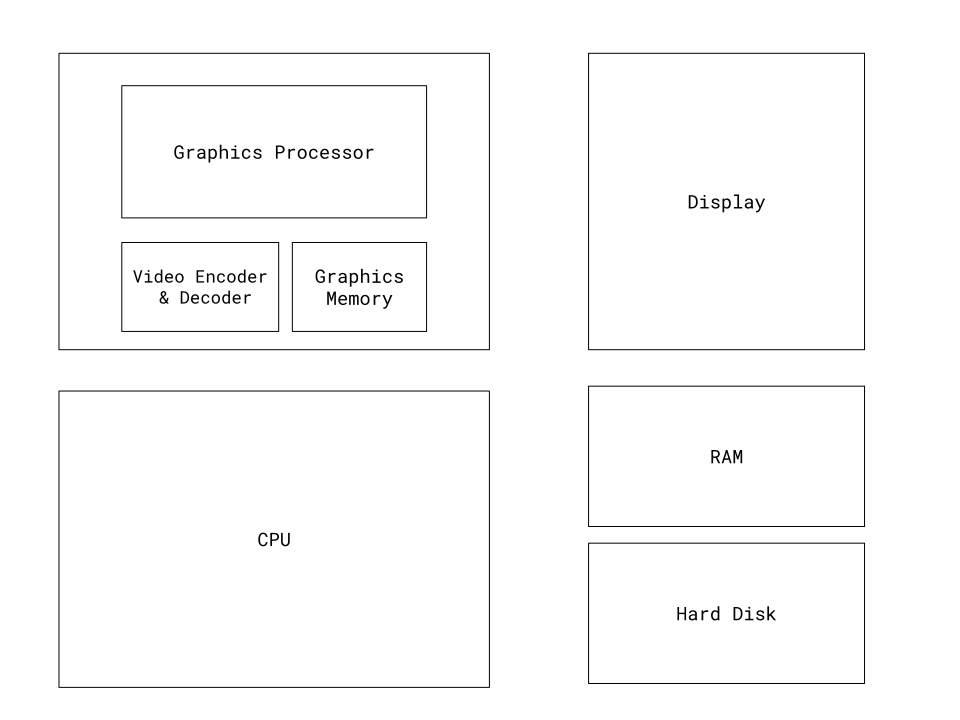
* In reality, integrated graphics cards actually do use the same physical RAM device as the CPU, but the operating system reserves a portion for the graphics card, and the graphics card manages the memory separately, and often use different caching/storage mechanisms so that, for practical purposes, GPU memory and CPU memory act as separate stores, requiring CPU cycles and data copies to move data between GPU and the CPU [1][2][3].
What is on the Graphics Card
Section titled “What is on the Graphics Card”When you’re writing web code with image/video data, you may not not be aware that different variables within a single function might be representing entities on different devices, such as the hard disk, CPU RAM, or in Video Memory on the graphics card.
So, here’s a list of what data types are stored where:
| Data Type | Location |
|---|---|
| VideoFrame | GPU |
| EncodedVideoChunk | CPU |
| ImageData | CPU |
| ImageBitmap | GPU |
| EncodedAudioChunk | CPU |
| AudioData | CPU |
| ArrayBuffer | CPU |
| UInt8Array | CPU |
| File | CPU + Disk |
| FileSystemFileHandle | CPU + Disk |
Many different methods and functions you will encounter in video processing will either keep data on a single device, or move data between devices. Here are a few important methods.
| Method | What is Happening |
|---|---|
| Canvas2d.drawImage | depends on the browser[4] |
| createImageBitmap(VideoFrame) | GPU -> GPU (local copy) |
| createImageBitmap(ImageData) | CPU -> GPU |
| createImageBitmap(Canvas or OffscreenCanvas) | GPU -> GPU (local copy) |
| createImageBitmap(Blob) | CPU -> GPU |
| getImageData | GPU -> CPU |
| putImageData | CPU -> GPU |
| transferFromImageBitmap | GPU -> GPU (local copy) |
| importExternalTexture | GPU->GPU (zero copy) |
| copyExternalImageToTexture | GPU->GPU (local copy) |
| decode | CPU->GPU |
| encode | GPU -> CPU |
| requestAnimationFrame | CPU waits for signal from GPU |
| File.arrayBuffer() | Hard Disk -> CPU/RAM |
It’s important to keep this in mind, because in many cases, for a simple task like rendering a VideoFrame to a canvas, there are multiple different ways to accomplish the same thing, but some methods are super efficient(importExternalTexture ) while some are much slower (getImageData ) because they involve different levels of copying and shuffling data around between devices.
Flow of data during video processing
Section titled “Flow of data during video processing”For someone just getting started, it might be hard to just read a long table full of data types and methods you may have never heard of, so to make this much clearer, here are several animations illustrating the flow of data between devices for the primary methods used when transcoding a video file in WebCodecs.
file.arrayBuffer()
While not part of WebCodecs per se, if you are transcoding a user-uploaded video, the first step would be to read the contents from disk into RAM as an array buffer, using file.arrayBuffer() or one of several other file reading methods, and when you do this, the data flow looks like this:
Demuxing
The next step is Demuxing (extracting EncodedVideoChunk objects from the file (array buffer)), we’ll get to it later, but overall it’s just a data transformation, taking slices of the array buffer, and adding metadata to construct each EncodedVideoChunk which then becomes an object in RAM.
Decode
When you set up a VideoDecoder and start sending chunks via decoder.decode(), it will send the chunks from RAM into the graphics card’s specialized Video Decoder module (assuming hardware acceleration).
Rendering
While rendering isn’t a step in transcoding, I’ll include it here anyway. There’s a number of ways you can render a VideoFrame to a canvas / the display, which will be covered here, but following best practices of using methods like importExternalTexture will send each VideoFrame in the most efficient way through the graphics processor to the final display.
Encode
Encoding is the mirror image of Decoding, following the reverse path of sending VideoFrame objects through the Encoder / Decoder, through the CPU and back into RAM. The main substantive difference is that encoding requires far more compute than encoding.
Muxing
Finally, muxing is the mirror image of demuxing, taking EncodedVideoChunk data and placing it in the right location of the outgoing ArrayBuffer (or file, or stream) which represents the transcoded video which can actually be played back by other video players.
Best practices
Section titled “Best practices”For the best performance, don’t needlessly shuffle data back and forth between the CPU, GPU and Hard Disk, there are real performance penalties for each data transfer operation.
This is especially important for VideoFrame objects - they reside in GPU memory. Outside of encoding/decoding, please try to keep any operations involving VideoFrame objects on the graphics card (via methods like createImageBitmap), and avoid reading VideoFrame data to the CPU with operations like copyTo.
The reason to go through all this trouble to understand the CPU vs the GPU, where each data type resides, and what the data flows look like, is to explain why this guide will make specific recommendations on which methods to use (like importExternalTexture) and which not to use (like drawImage), and why we’re recommending certain best practices, to follow the above principles.